How to create reusable AI prompts
Turn a prompt you keep retyping into named sections, save it in your library, and keep improving it without losing earlier versions.
A reusable prompt keeps the instructions that work and gives the changing details a name. Instead of rewriting a weekly update request every Friday, keep its task and output format in your library, then fill in this week's team and notes.
Start with a prompt you already use
Pick one repeatable task: summarizing meeting notes, rewriting an email, or drafting a status update. Separate the instructions that stay the same from the information you replace each time. For example, the headings in a weekly update can stay fixed while the team and progress notes change.
Create a weekly update template
- Open your library and choose New prompt.
- The new editor starts with a section named Task. Enter this in its text field:
Write a weekly update for {{team}} using these notes: {{notes}} - Choose Add section. Change its section name to Format and enter this text:
Use three headings: Progress, Blockers, Next steps. - Check the preview. Prompt Maker Studio adds the
<TASK>and<FORMAT>tags automatically from your section names. Enter each section's content separately; you do not need to type its wrapping tags. - Choose Save. Enter Weekly status update as the name and, optionally, Work as the folder. Choose Save prompt to keep it in your library.
For another starting point, use Starter templates in a new prompt. These provide section structures such as Role, task, format. Choosing a starter replaces your current sections, so choose it before writing your own example.
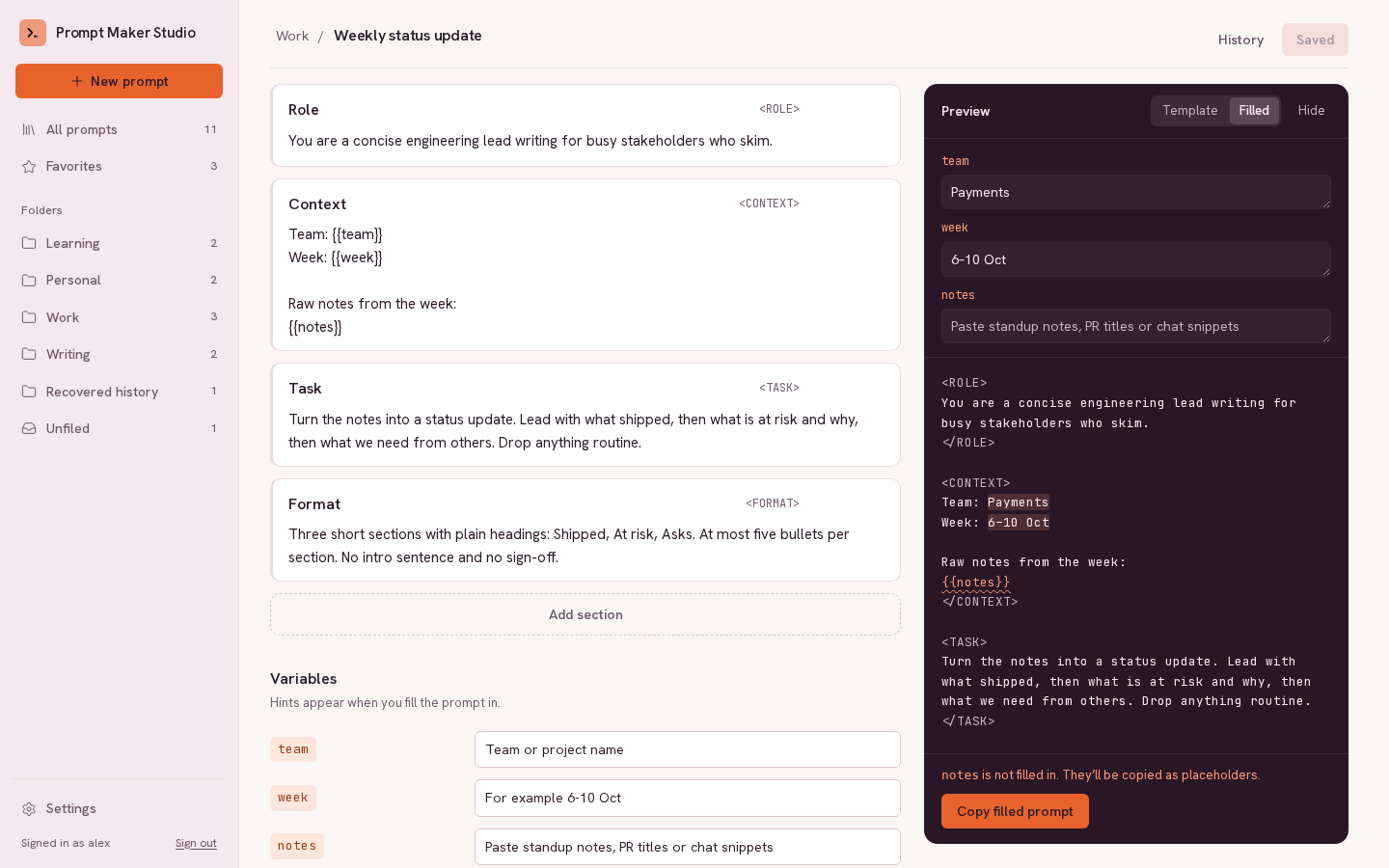
Fill it in when you need it
Select Filled in the preview and enter values for team and notes. On a phone, select Fill and copy first. Choose Copy filled prompt, then paste it into ChatGPT, Claude, Gemini, or your preferred assistant. The guide to template variables explains hints, required inputs, and example values.
Improve the template without losing the old version
When an instruction needs changing, edit the saved prompt and choose Save. Open History and select an earlier version to compare it with the current saved version. Added and removed words are highlighted.
To bring an earlier version back, save or discard pending edits first, then choose Restore version with its version number. The version you replace stays in history. Changing only the filled inputs does not rewrite the saved template.
Put it to use
Sign in to keep your own library. Writing, saving, filling in, and copying prompts needs no AI provider connection. Paste a prompt, Refine, and Try once are optional actions that use the provider you connect.
Open Prompt Maker StudioKeep learning
- How to use variables in AI prompt templates
Build a weekly update template with {{variables}}, add hints and example inputs, and copy a filled prompt into your preferred AI assistant.
- How to organize and reuse your ChatGPT prompts
Keep useful ChatGPT prompts in a personal library with clear names, folders, favorites, search, and version history.