How to organize and reuse your ChatGPT prompts
Keep useful ChatGPT prompts in a personal library with clear names, folders, favorites, search, and version history.
Keep the prompts worth reusing in a separate library so you can find them without searching old conversations. Prompt Maker Studio stores your prompt templates; you can fill one in, copy it, and paste it into a new ChatGPT conversation whenever you need it. The same approach works with Claude, Gemini, and other assistants.
Name prompts by the task they help you finish
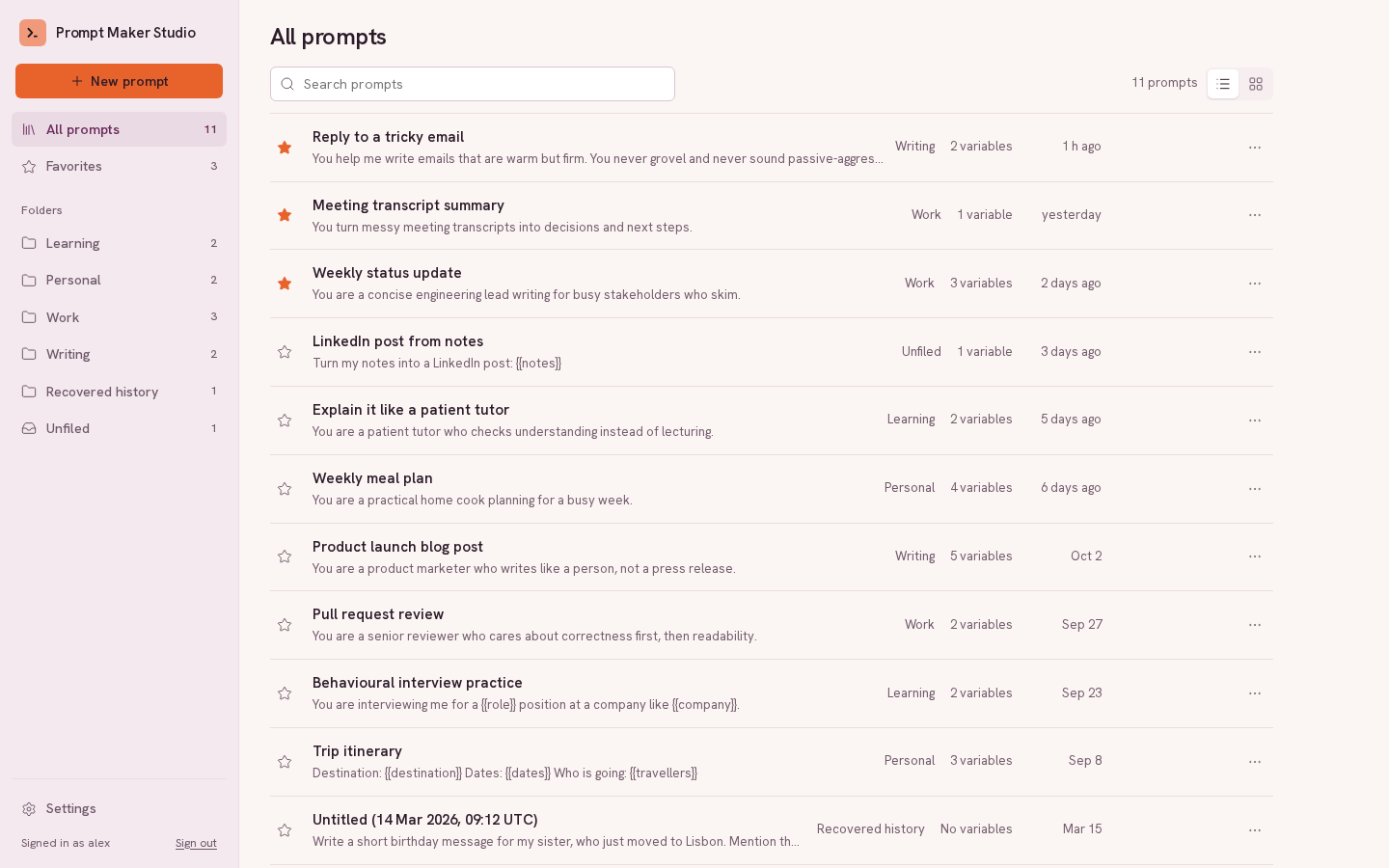
Prefer names such as "Weekly status update," "Rewrite a customer reply," or "Summarize meeting actions" over "Prompt 1." A name should tell you when to use the prompt. To change a saved name, open its more-actions menu in the library, choose Rename, edit the name, and press Enter.
Group related prompts in folders
- When saving a new prompt, enter a Folder, such as Work, Writing, or Learning. Pick an existing name or type a new one, then choose Save prompt.
- To file an existing prompt, open its more-actions menu and choose Move to folder…. Enter a folder name and choose Move.
- Select that folder in the sidebar to see its prompts. On a phone, open the navigation menu first. Leave the folder field empty when moving a prompt to keep it Unfiled.
A folder appears once a prompt is filed in it. Folders form one flat list; you do not need to create empty folders first. From a folder's actions menu, you can rename it or remove it. Removing a folder keeps its prompts and makes them unfiled. Renaming onto an existing folder merges the two.
Keep frequent prompts in Favorites
Select the star beside a prompt, then choose Favorites in the sidebar. Starring a prompt leaves it in its folder too. Use this view for the few templates you reach for most often.
Search the right part of your library
Use Search prompts to search prompt names, folder names, section names, and section text. Search narrows the current view: if you are in Favorites or a folder, it searches those prompts. Select All prompts before searching the entire library. Results show the most recently edited prompts first.
Reuse a prompt and keep its improvements
For a prompt with variables, choose Fill and copy in the library. Enter the values, then choose Copy filled prompt and paste it into ChatGPT. The library's Copy template action copies the unchanged template with its placeholders. See the variables guide for complete and incomplete copies.
Edit the saved template when you find a better instruction, then choose Save. In History, select an earlier version to compare it with the current saved version. Save or discard pending edits before choosing Restore version with its number. Restoring keeps the version you replace in history.
Optional: use your library from inside ChatGPT
Copying and pasting works without connecting ChatGPT to your library. If you choose to connect the optional integration, it can list, open, save, and update your prompts from the chat after you sign in and grant access. The ChatGPT integration documentation covers connection requirements and setup. This is a separate connection from the AI provider used by Paste a prompt, Refine, or Try once.
Put it to use
Sign in to keep your own library. Writing, saving, filling in, and copying prompts needs no AI provider connection. Paste a prompt, Refine, and Try once are optional actions that use the provider you connect.
Open Prompt Maker StudioKeep learning
- How to create reusable AI prompts
Turn a prompt you keep retyping into named sections, save it in your library, and keep improving it without losing earlier versions.
- How to use variables in AI prompt templates
Build a weekly update template with {{variables}}, add hints and example inputs, and copy a filled prompt into your preferred AI assistant.